If you struggle to organize project tasks, milestones, and deadlines clearly, creating a timeline from scratch can take extra time and effort. A well-structured timeline helps teams track progress, manage schedules, and keep everyone aligned throughout a project. The right templates make it easier to create professional timelines without starting from zero. Read this article to find 10 creative PowerPoint timeline templates.
Overview of 10 timeline templates for better slides
Different timeline templates are designed for different storytelling needs. Some timelines focus on showing key events and milestones, while others are better for visualizing processes, plans, or team workflows. Choosing the right structure helps you present information more clearly and make your timeline easier to understand. The table below highlights common timeline templates, their visual structures, content focus, and best use cases.
| Timeline template | Main visual structure | Content focus | Suitable for |
|---|---|---|---|
| Basic timeline | Straight milestone line | Key dates, events, and milestones | Simple project overviews and historical events |
| Arrow timeline | Directional arrow flow | Progress, direction, and major stages | Roadmaps, growth plans, and strategic journeys |
| Circular timeline | Circular flow | Repeating stages and continuous cycles | Recurring processes, workflows, and annual cycles |
| Vertical timeline | Top-to-bottom sequence | Chronological steps and progress stages | Step-by-step processes, instructions, and historical timelines |
| Horizontal timeline | Left-to-right time axis | Dates, phases, and sequential events | Project schedules, plans, and event overviews |
| Annual timeline | 12-month calendar sequence | Monthly goals, activities, and key events | Yearly plans, marketing calendars, and business strategies |
| Swimlane timeline | Multiple lanes by category or team | Tasks, responsibilities, and timelines across groups | Team projects, cross-functional plans, and workflows |
| Milestone timeline | Highlighted milestone markers | Major achievements, deadlines, and checkpoints | Executive updates, project reviews, and progress reports |
| 30-60-90-day timeline | Three progressive time sections | Short-term goals, actions, and expected outcomes | Onboarding plans, business goals, and action plans |
| Project timeline | Phases with task bars | Tasks, dependencies, deadlines, and project phases | Detailed project management and execution planning |
10 PowerPoint timeline templates worth trying
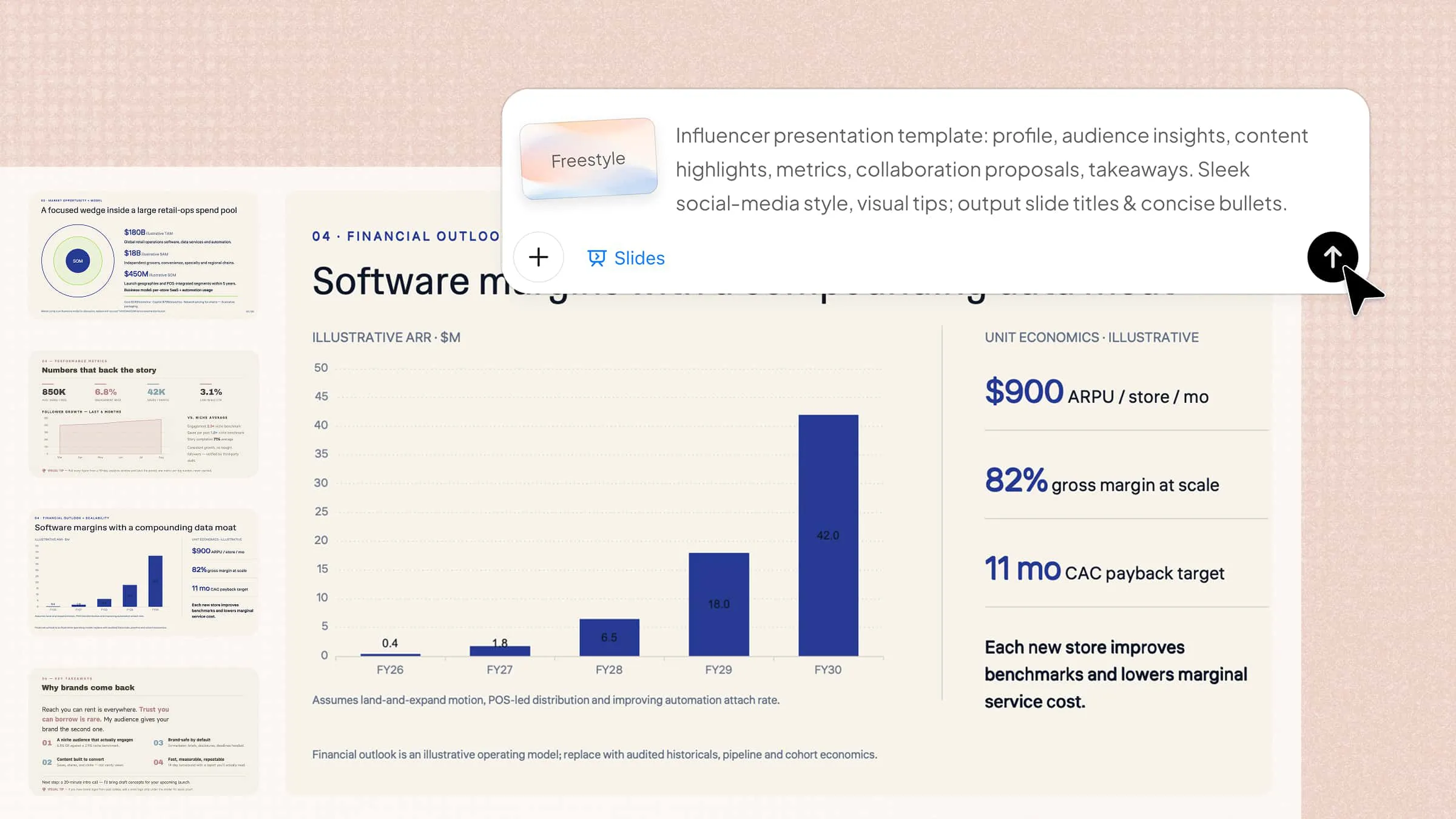
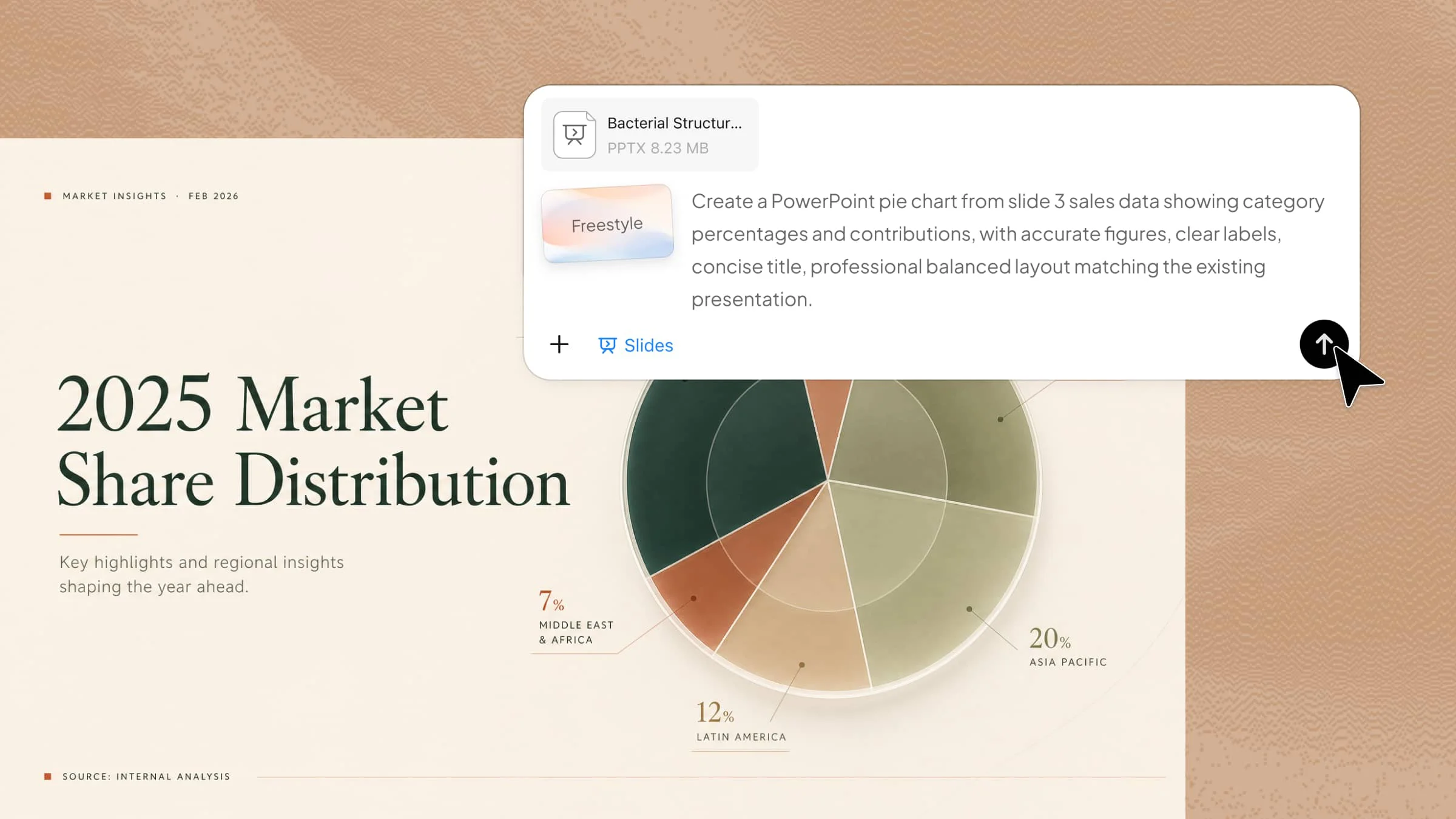
A clear timeline format helps organize tasks, milestones, deadlines, and project progress in a way that is easy to follow. Explore 10 PowerPoint timeline templates with different layouts to create more effective presentations. If you want to build timelines faster, Kimi Slides, an AI presentation maker, can help generate professional timeline slides from your ideas or existing content.
Basic timeline template
A basic timeline gives you a simple way to show key project stages in chronological order. It works well when you only need to highlight major dates, milestones, and deliverables without too much detail. This layout is ideal for a clean, one-slide project overview.
How to use
Step 1: Enter your prompt
Describe the project, key milestones, dates, and short details you want to show in the basic timeline.
Prompt:
Step 2: Let AI generate your PPT
Kimi Slides creates the timeline structure, positions milestones in order, and formats the slide automatically.
Step 3: Review and export the PPT
Check the dates and milestone text, make any edits, and export the finished PowerPoint.
Arrow timeline template
An arrow timeline emphasizes movement and progress from one stage to the next. It is useful for roadmaps, growth plans, and projects where showing direction is important. The connected arrow makes the sequence easy to understand at a glance.
How to use
Step 1: Enter your prompt
Specify the project stages, their dates, and the direction of progress you want the arrow timeline to show.
Prompt:
Step 2: Let AI generate your PPT
Kimi Slides builds the connected arrow and arranges each project stage along the path.
Step 3: Review and export the PPT
Check the stage order and dates, adjust the content if needed, and export the presentation.
Circular timeline template
A circular timeline is useful when a project follows a repeating cycle rather than a straight sequence. It can clearly show recurring activities, quarterly plans, or processes that return to the starting point. The circular structure makes repeated stages easy to recognize.
How to use
Step 1: Enter your prompt
Define the recurring stages, activities, and period you want to display around the circular timeline.
Prompt:
Step 2: Let AI generate your PPT
Kimi Slides arranges the four quarters into a circular flow and adds the requested activities.
Step 3: Review and export the PPT
Check each quarter and its activities, make any changes, and export the completed slide.
Vertical timeline template
A vertical timeline arranges milestones from top to bottom, making it useful when several stages need short descriptions. It works especially well for step-by-step processes and project phases. The layout also gives each milestone enough space for supporting information.
How to use
Step 1: Enter your prompt
Provide the project stages, dates, and descriptions you want arranged from the beginning to the end of the process.
Prompt:
Step 2: Let AI generate your PPT
Kimi Slides creates the top-to-bottom sequence and places each milestone beside the timeline.
Step 3: Review and export the PPT
Review the sequence and descriptions, make adjustments where needed, and export the slide.
Horizontal timeline template
A horizontal timeline is a practical choice for showing project progress across dates or months. It gives each stage a clear position along a single time axis. This format is especially useful when viewers need to understand the overall schedule quickly.
How to use
Step 1: Enter your prompt
Give the project name, time period, stages, and milestones that should appear along the horizontal timeline.
Prompt:
Step 2: Let AI generate your PPT
Kimi Slides places the project stages along the horizontal time axis and formats the schedule.
Step 3: Review and export the PPT
Check the dates and milestones, make final edits, and export the completed slide.
Annual timeline template
An annual timeline provides a full-year view of planned activities and major milestones. It is useful for business strategies, marketing plans, educational schedules, and yearly project goals. Showing all 12 months on one slide makes long-term planning easier to follow.
How to use
Step 1: Enter your prompt
Set the year, monthly activities, and important milestones you want to track across the full annual timeline.
Prompt:
Step 2: Let AI generate your PPT
Kimi Slides builds the 12-month structure and places each activity under its correct month.
Step 3: Review and export the PPT
Verify the monthly activities and milestones, then make final edits and export the slide.
Swimlane timeline template
A swimlane timeline shows when different teams, departments, or workstreams are responsible for project activities. Each lane represents a separate group while the shared time axis keeps everything aligned. This makes dependencies and overlapping work easier to see.
How to use
Step 1: Enter your prompt
Define the teams, tasks, dates, and dependencies that need to appear in separate swimlanes.
Prompt:
Step 2: Let AI generate your PPT
Kimi Slides creates separate lanes and places each team's tasks according to their dates.
Step 3: Review and export the PPT
Check task durations, overlaps, and dependencies, then make final edits and export.
Milestone timeline template
A milestone timeline focuses attention on the most important achievements or decision points in a project. Instead of showing every task, it highlights major moments that define progress. This makes it ideal for executive updates and project status presentations.
How to use
Step 1: Enter your prompt
List the key achievements, decision points, dates, and any milestone that should receive extra visual emphasis.
Prompt:
Step 2: Let AI generate your PPT
Kimi Slides creates the timeline and visually highlights each major project milestone.
Step 3: Review and export the PPT
Confirm the milestones and dates, make any necessary changes, and export the final slide.
30-60-90-day timeline template
A 30-60-90-day timeline breaks a plan into three clear stages with specific goals for each period. It is useful for onboarding, sales plans, new roles, and short-term business strategies. The three-stage format makes priorities and progress easy to track.
How to use
Step 1: Enter your prompt
Provide the goals, tasks, and expected outcomes for each 30-day stage of the plan.
Prompt:
Step 2: Let AI generate your PPT
Kimi Slides divides the plan into three stages and organizes the goals within each period.
Step 3: Review and export the PPT
Check each goal and outcome, make any necessary changes, and export the final slide.
Project timeline template
A project timeline gives teams a broader view of tasks, phases, deadlines, and deliverables in one place. It is useful for projects with several stages that need to be tracked from kickoff to completion. A clear timeline also makes the overall schedule easier to communicate.
How to use
Step 1: Enter your prompt
Specify the project phases, task durations, deadlines, and key deliverables you want shown from start to finish.
Prompt:
Step 2: Let AI generate your PPT
Kimi Slides builds the project phases, task bars, dates, and milestones into one structured slide.
Step 3: Review and export the PPT
Review the schedule and dates, adjust any details, and export the finished PowerPoint.
Why choose Kimi Slides to create timelines for a PPT?
Creating a timeline is easier when AI can handle both the structure and presentation details. Kimi Slides helps turn your information into organized, visual slides while giving you flexibility to refine the final design. Here are some key features that make it useful for creating timeline presentations.
Create timeline slides from your content: Start with text, images, or other source materials and turn them into presentation slides. This helps you quickly build timelines without arranging every element manually.
Organize events in a logical sequence: Kimi Slides structures dates, milestones, and key events into a clear flow, making chronological information easier to follow.
Choose layouts that fit your timeline: Create different visual structures to present timelines, such as horizontal, vertical, or other milestone-based layouts, depending on the information you need to show.
Turn detailed information into concise points: Transform lengthy descriptions into focused slide content so each milestone highlights what matters most.
Add visuals to make timelines easier to understand: Generate or incorporate visual elements that help distinguish milestones, stages, and key events instead of relying only on text.
Edit timelines with precision: Select individual timeline elements to make direct changes, or use conversational AI to refine dates, milestones, text, layouts, and visuals. Save each iteration as a separate version and switch between versions anytime to compare or restore your preferred timeline.
Export editable PPTX files: Export your completed timeline as a PPTX presentation so you can continue editing dates, milestones, text, and other elements before presenting.
Key tips for using timeline templates in presentations
A structured timeline design can make project information much easier to understand, but the template alone is not enough. A few simple design choices can keep your timeline clear, balanced, and useful for your audience. Whether you are using a template or a more practical layout, keep these tips in mind.
Choose a template that fits your content
Choose a template based on the amount and type of information you need to present. A simple timeline works well for a few milestones, while a PowerPoint timeline template is better for detailed project phases and schedules. Make sure the layout gives enough space for your content without making the slide feel crowded.
Keep milestones clearly labeled
Every milestone should have a short, clear label that tells viewers what happened or what needs to happen. Avoid vague headings and use specific terms such as "Design Approved" or "Product Launch." Clear labels help your audience understand the timeline without needing lengthy explanations.
Limit text at each timeline stage
Too much text can make even a well-designed timeline difficult to read. Keep each stage focused on the most important detail and use short phrases instead of full paragraphs. A PowerPoint timeline template works best when viewers can understand each point quickly.
Highlight key dates and milestones
Give important dates and major milestones more visual attention so they stand out from routine activities. You can use larger markers, icons, or subtle emphasis to guide the audience toward critical points. This is especially useful in a timeline template where several stages may appear on the same slide.
Use consistent visual cues
Keep fonts, icons, shapes, spacing, and other visual elements consistent throughout the timeline. Using the same style for similar stages helps viewers recognize patterns and follow the sequence more easily. Consistency also makes the presentation look more professional and organized.
Check timeline accuracy before presenting
Review every date, milestone, sequence, and label before presenting the slide. Even a small error in timing can make the entire project plan confusing or misleading. Compare the timeline with your original project information to make sure everything is accurate and appears in the correct order.
Conclusion
A clear timeline makes complex plans easier to present and helps your audience understand key milestones at a glance. PowerPoint timeline templates provide a starting point, allowing you to organize information clearly without overcrowding your slides. Choose a layout that fits your message, then keep the content concise and easy to follow. If you want to create professional timeline slides more efficiently, try Kimi Slides to turn your ideas into polished, ready-to-edit presentations.