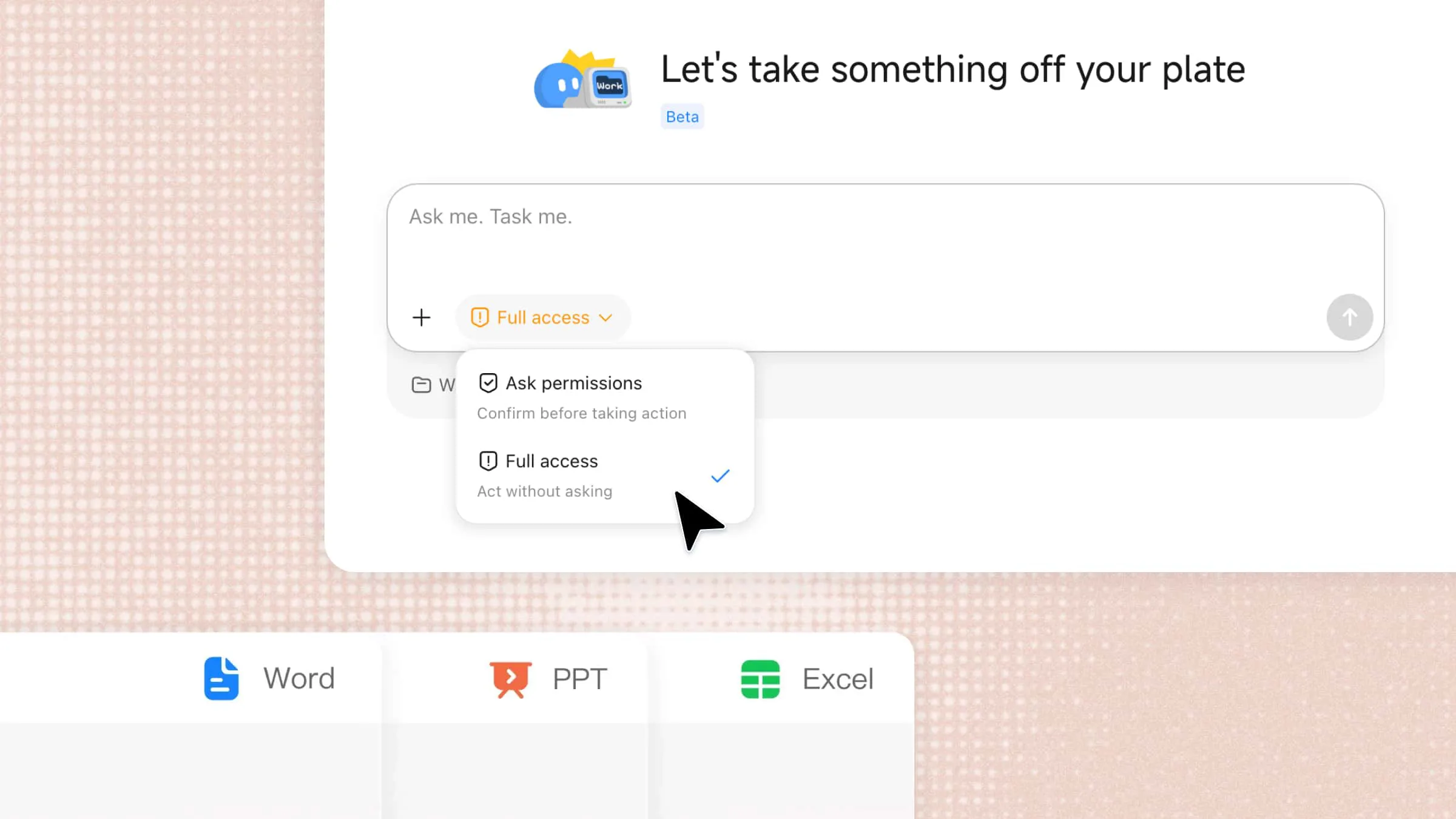
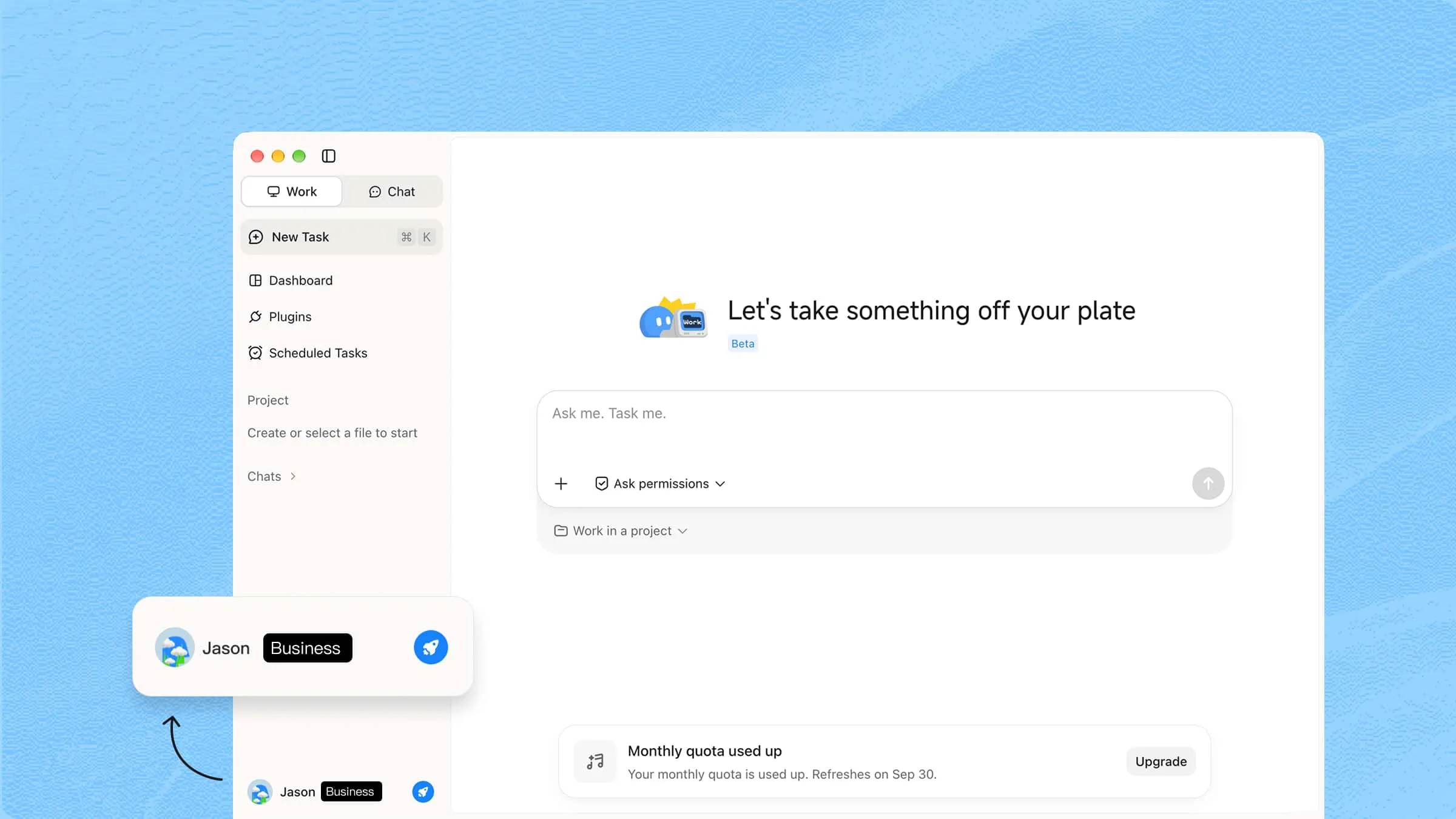
Managing research, files, apps, and everyday tasks across multiple windows can quickly become time-consuming. Kimi Work for Windows brings AI assistance directly to your desktop, helping you handle tasks, find information, and streamline workflows from one place. In this article, we'll explore its key features, how it works, and how you can use it to make everyday work more efficient.
What is Kimi Work for Windows
Kimi Work for Windows is a desktop AI assistant designed to help you manage research, files, applications, and everyday tasks from your computer. It can understand your goals, perform multi-step workflows, and coordinate tasks across different tools, making it easier to complete work without constantly switching between applications.
Key features of Kimi Work on Windows
Kimi Work brings AI-powered automation directly to your desktop, helping you manage files, research information, and complete complex workflows more efficiently. Here are its key features.
AI agent for local file management
Kimi Work can search, analyze, summarize, and organize files stored on your Windows computer. It helps you quickly extract useful information from documents without manually opening and reviewing each file.
Browser automation and web research
Kimi Work can interact with your browser to support web research and repetitive online tasks. It can gather information, analyze webpages, and streamline workflows such as market research and competitor analysis.
Automated workflows with scheduled tasks
Set up recurring workflows to automate tasks such as daily summaries, weekly reports, or routine data processing. Scheduled automation lets Kimi Work handle repetitive work without requiring you to start each task manually.
Multi-agent collaboration for complex tasks
With Agent Swarm, Kimi Work can coordinate multiple AI agents to handle different parts of a complex project. This allows research, analysis, and content tasks to run together and produce more comprehensive results.
Custom skills and plugins
Kimi Work supports Skills and Plugins that extend its capabilities for specific workflows. You can customize the experience for tasks such as research, content creation, data analysis, and business operations.
Goal-based task execution
Instead of giving instructions for every individual step, you can describe your overall objective. Kimi Work can plan the required workflow, execute multiple tasks, and deliver the results with less manual input.
System requirements to use Kimi Work on Windows
Before using Kimi Work on Windows, make sure your device meets the basic system requirements for a smooth experience. Kimi Work is available through the Kimi desktop client and supports Windows 10 or later. Some features, such as local file access and browser automation, may require additional permissions to work properly.
| Requirement | Details |
|---|---|
| Operating system | Windows 10 or later |
| Internet connection | A stable internet connection is recommended for AI processing and online features. |
| Permissions | Some features may require permission to access local files or interact with your browser. |
How to get started with Kimi Work on Windows
Getting started with Kimi Work for Windows gives you access to an AI workspace directly from your desktop. After installing Kimi Work, you can use its agentic features to handle research, planning, and multi-step tasks. Goal Mode lets you describe your objective while Kimi Work plans and works through the required steps. Follow the steps below to get started.
Download and install Kimi Work
Download Kimi Work from its official website and complete the installation. Once installed, open the desktop app and sign in to access its AI features and Goal Mode.
Use Goal Mode
For tasks that require research, planning, or multiple rounds of work, add /goal to your prompt. Kimi Work can then break down your objective, work through the required steps, and continue until it produces a usable result.
Give Kimi Work the necessary context, requirements, constraints, and acceptance criteria. Clear details help it understand what you want and determine when the task is complete.
Prompt template:
Example prompt:
Once Goal Mode starts, Kimi works through the task across multiple rounds and provides progress updates along the way. Review the final output against your requirements, then refine or export it as needed.
Automate repetitive work with scheduled tasks
Kimi Work can help automate recurring tasks, so you do not have to repeat the same instructions manually. You can schedule routine workflows to run at specific times and receive the results when they are ready. Follow the steps below to create a scheduled task.
Step 1: Open Kimi Work and use the scheduled tasks tool
Open Kimi Work, go to "Scheduled Tasks," and click "Create" to set up a new automated workflow.
Step 2: Describe your scheduled task
Enter the task you want Kimi Work to perform and specify when and how often it should run. Include any requirements, preferred format, or other instructions needed for the task.
Step 3: Check your completed workflow output
Once the scheduled task runs, review the generated results and make any necessary adjustments to the workflow for future runs.
Use plugins to expand Kimi Work
Plugins allow Kimi Work to connect with additional tools and services, making it easier to handle specialized tasks from one workspace. You can choose integrations based on your workflow and enable them when needed.
Step 1: Open the plugin marketplace
Launch Kimi Work and go to the "Plugins" option from the workspace. Browse the available plugins to find integrations that match your needs.
Step 2: Choose a plugin
Select a plugin to view its purpose, available features, and how it can support your workflow. Choose the one that best fits the task you want to accomplish and click "Install" to strata installation.
Step 3: Complete the installation
Follow the on-screen instructions to add the plugin to your Kimi Work workspace. Once installed, the plugin should appear among your available tools.
Step 4: Enable the plugin in a conversation
Start a new conversation and select the installed plugin when needed. Enable it before submitting your task so Kimi Work can use its capabilities to complete the requested workflow.
Note: Installing a plugin makes it available in Kimi Work, but it will not be used automatically in every conversation. Select or invoke a plugin only when its capabilities are needed.
Use cases for Kimi Work for Windows
Kimi Work can support a wide range of everyday and professional tasks by combining AI assistance with desktop workflows. From organizing work to automating repetitive processes, here are some practical ways to use it.
Stay on top of your daily work
Use Kimi Work to prepare daily briefings, organize project files, and summarize important updates. It can help you keep track of tasks and information without switching between multiple tools.
Research markets and competitors
Kimi Work can gather and analyze market trends, competitor information, and customer feedback. This helps you turn scattered research into useful insights for business planning and decision-making.
Turn ideas and discussions into business deliverables
Convert meeting notes, discussions, or rough ideas into structured outputs such as action plans, proposals, and reports. Kimi Work can organize the information and turn it into practical, ready-to-use documents.
Support research and learning
Use Kimi Work to collect, summarize, and organize information for research or learning projects. It can help structure research materials, explain complex topics, and prepare useful study or academic content.
Automate repetitive workflows
Set up recurring tasks to handle routine processes automatically, such as weekly reports, updates, or data collection. This reduces manual work and gives you more time to focus on higher-value tasks.
Common issues when using Kimi Work on Windows
Kimi Work can simplify many desktop workflows, but occasional issues may arise with files, automation, performance, or complex tasks. Knowing how to troubleshoot these problems can help you get more reliable results from Kimi Work for Windows.
Kimi Work cannot access local files
If Kimi Work cannot access your files, check whether it has the necessary permissions for the selected folders. Also confirm that the files are stored in accessible locations and are not restricted by Windows settings.
Kimi Work runs slowly or responds slowly
Slow performance can occur when working with large files, complex tasks, or multiple workflows at once. Close unnecessary applications, check your internet connection, and make sure your computer has enough available system resources.
Browser automation does not work properly
If browser-based tasks fail, check that the required browser permissions are enabled and your browser is up to date. Restarting the browser or reconnecting Kimi Browser Extension (formerly Kimi WebBridge) may also resolve temporary connection or automation issues.
Scheduled tasks do not run as expected
Check the task settings, internet connection, and required permissions. Scheduled tasks run locally through the Kimi Work desktop app, so keep the app and your device running at the scheduled time. Missed tasks during app closure, sleep, or shutdown will not be executed later.
Kimi Work cannot complete complex tasks
For complex workflows, make sure Kimi Work has clear objectives, enough context, and access to the required plugins or tools. Providing detailed instructions and enabling necessary permissions can help improve task completion.
Conclusion
Kimi Work for Windows combines AI assistance, automation, file management, and research capabilities in one desktop workspace. From everyday tasks to complex workflows, it can help reduce manual effort and improve productivity. By using features such as Goal Mode, scheduled tasks, and plugins, you can build a more efficient workflow around the tasks that matter most.